> ## Documentation Index
> Fetch the complete documentation index at: https://docs-staging-chore-rate-limits-autoupdate.mintlify.site/llms.txt
> Use this file to discover all available pages before exploring further.

> Learn how to configure an update policy form using Forms for Actions for users to review and accept new terms of service or consent updates.

# Use Cases: Configure an update policy form using Forms

<Card title="Before you start">
  1. Create a [Machine-to-Machine Application](/docs/get-started/auth0-overview/create-applications/machine-to-machine-apps) with the following scopes enabled:

  * `read:users`
  * `update:users`
  * `create:users`
  * `read:users_app_metadata`
  * `update:users_app_metadata`
  * `create:users_app_metadata`

  2. Add a [Vault connection](/docs/customize/forms/vault) using the M2M application credentials.
</Card>

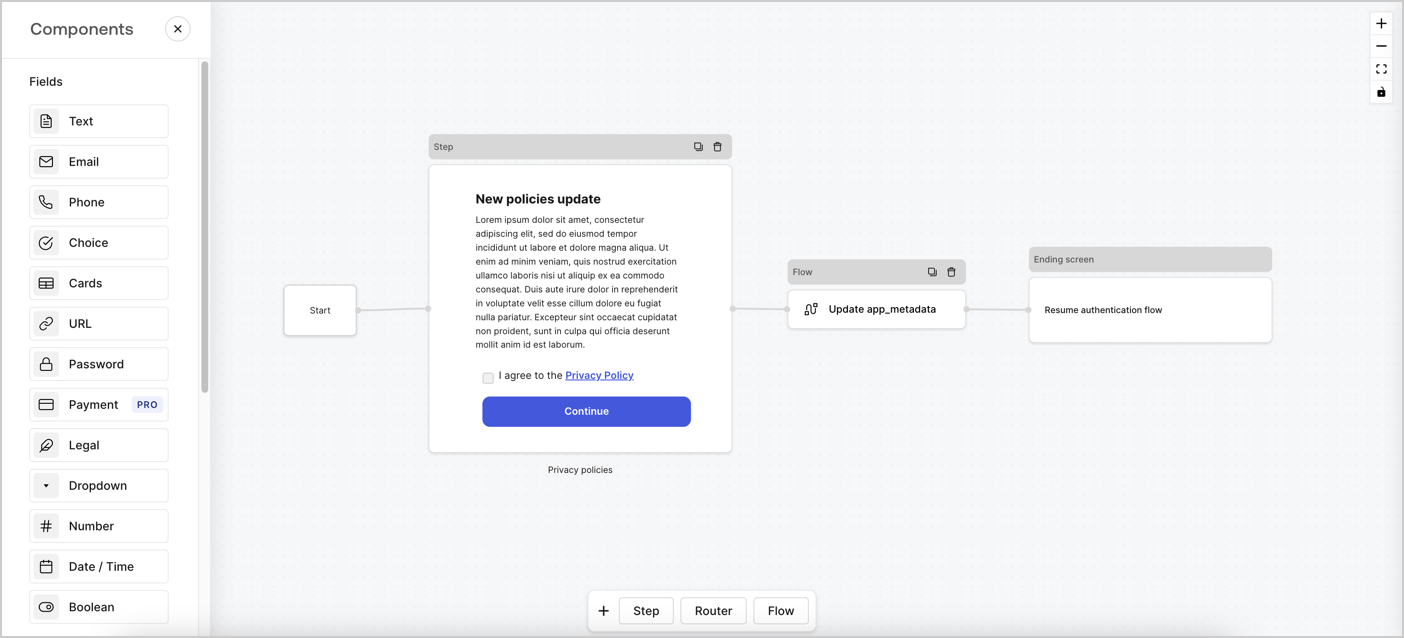
Forms for Actions allows you to create custom privacy policies flows and store the consent under the `app_metadata` object.
<Frame>
  <img src="https://mintcdn.com/docs-staging-chore-rate-limits-autoupdate/zh1JjItaPMJGfpQa/docs/images/cdy7uua7fh8z/6i68dMvHDTijfRmSgN1x8Q/ad900e7d4c0fb34645921435472b8684/privavy-policy-form.png?fit=max&auto=format&n=zh1JjItaPMJGfpQa&q=85&s=11961c7afadc0b48cd188e3cb254ab41" alt="Dashboard > Actions > Forms > Privacy policy use case" data-og-width="1404" width="1404" data-og-height="638" height="638" data-path="docs/images/cdy7uua7fh8z/6i68dMvHDTijfRmSgN1x8Q/ad900e7d4c0fb34645921435472b8684/privavy-policy-form.png" data-optimize="true" data-opv="3" srcset="https://mintcdn.com/docs-staging-chore-rate-limits-autoupdate/zh1JjItaPMJGfpQa/docs/images/cdy7uua7fh8z/6i68dMvHDTijfRmSgN1x8Q/ad900e7d4c0fb34645921435472b8684/privavy-policy-form.png?w=280&fit=max&auto=format&n=zh1JjItaPMJGfpQa&q=85&s=8951f686429339076eb6b7eb92377f01 280w, https://mintcdn.com/docs-staging-chore-rate-limits-autoupdate/zh1JjItaPMJGfpQa/docs/images/cdy7uua7fh8z/6i68dMvHDTijfRmSgN1x8Q/ad900e7d4c0fb34645921435472b8684/privavy-policy-form.png?w=560&fit=max&auto=format&n=zh1JjItaPMJGfpQa&q=85&s=2aca8e9950a806ea4960cdb8f74b64f5 560w, https://mintcdn.com/docs-staging-chore-rate-limits-autoupdate/zh1JjItaPMJGfpQa/docs/images/cdy7uua7fh8z/6i68dMvHDTijfRmSgN1x8Q/ad900e7d4c0fb34645921435472b8684/privavy-policy-form.png?w=840&fit=max&auto=format&n=zh1JjItaPMJGfpQa&q=85&s=898d560061cf0698fcdff5ebef50a73c 840w, https://mintcdn.com/docs-staging-chore-rate-limits-autoupdate/zh1JjItaPMJGfpQa/docs/images/cdy7uua7fh8z/6i68dMvHDTijfRmSgN1x8Q/ad900e7d4c0fb34645921435472b8684/privavy-policy-form.png?w=1100&fit=max&auto=format&n=zh1JjItaPMJGfpQa&q=85&s=ee805140aa61720e76a26df2b3d63115 1100w, https://mintcdn.com/docs-staging-chore-rate-limits-autoupdate/zh1JjItaPMJGfpQa/docs/images/cdy7uua7fh8z/6i68dMvHDTijfRmSgN1x8Q/ad900e7d4c0fb34645921435472b8684/privavy-policy-form.png?w=1650&fit=max&auto=format&n=zh1JjItaPMJGfpQa&q=85&s=ebfff2704e87ced40a8b1a2fe926ab8b 1650w, https://mintcdn.com/docs-staging-chore-rate-limits-autoupdate/zh1JjItaPMJGfpQa/docs/images/cdy7uua7fh8z/6i68dMvHDTijfRmSgN1x8Q/ad900e7d4c0fb34645921435472b8684/privavy-policy-form.png?w=2500&fit=max&auto=format&n=zh1JjItaPMJGfpQa&q=85&s=1ec96c791dff5918059cc51a39556da0 2500w" />
</Frame>

The sections below outline how you can create an Update Policy form using nodes and flows, along with steps for adding your form to a [Post Login](/docs/customize/actions/explore-triggers/signup-and-login-triggers/login-trigger) Action.

## Create a form from scratch

Follow these steps to create a form to gather information:

1. Open the Form editor by selecting **Auth0 Dashboard > Actions > Forms.**
2. Select **Create Form** > **Start from scratch**.

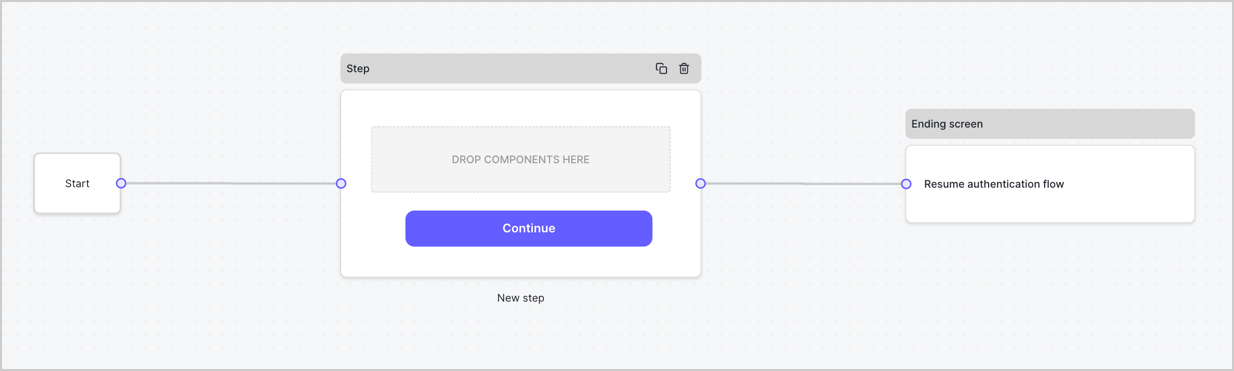
By default, a new form contains a Start node, a Step node, and an Ending screen node.
<Frame>
  <img src="https://mintcdn.com/docs-staging-chore-rate-limits-autoupdate/u6rRSZjxGLJ2P0HJ/docs/images/cdy7uua7fh8z/2TZ9jSjgEcARFpULI6hz4R/a4319a1bd482f2ee5cc23100fdb2f42c/New-form-Forms-for-action-use-case.png?fit=max&auto=format&n=u6rRSZjxGLJ2P0HJ&q=85&s=e243c9feebbf9f4d1bb705dee067ee16" alt="Dashboard > Forms > Use Cases > Form" data-og-width="1234" width="1234" data-og-height="371" height="371" data-path="docs/images/cdy7uua7fh8z/2TZ9jSjgEcARFpULI6hz4R/a4319a1bd482f2ee5cc23100fdb2f42c/New-form-Forms-for-action-use-case.png" data-optimize="true" data-opv="3" srcset="https://mintcdn.com/docs-staging-chore-rate-limits-autoupdate/u6rRSZjxGLJ2P0HJ/docs/images/cdy7uua7fh8z/2TZ9jSjgEcARFpULI6hz4R/a4319a1bd482f2ee5cc23100fdb2f42c/New-form-Forms-for-action-use-case.png?w=280&fit=max&auto=format&n=u6rRSZjxGLJ2P0HJ&q=85&s=9f25d57c9294c9b7febe300182720aef 280w, https://mintcdn.com/docs-staging-chore-rate-limits-autoupdate/u6rRSZjxGLJ2P0HJ/docs/images/cdy7uua7fh8z/2TZ9jSjgEcARFpULI6hz4R/a4319a1bd482f2ee5cc23100fdb2f42c/New-form-Forms-for-action-use-case.png?w=560&fit=max&auto=format&n=u6rRSZjxGLJ2P0HJ&q=85&s=c75cb1448630425cbfd57ab84a4849fd 560w, https://mintcdn.com/docs-staging-chore-rate-limits-autoupdate/u6rRSZjxGLJ2P0HJ/docs/images/cdy7uua7fh8z/2TZ9jSjgEcARFpULI6hz4R/a4319a1bd482f2ee5cc23100fdb2f42c/New-form-Forms-for-action-use-case.png?w=840&fit=max&auto=format&n=u6rRSZjxGLJ2P0HJ&q=85&s=46d82a6fe9f05e6283f0f70fd87b9c04 840w, https://mintcdn.com/docs-staging-chore-rate-limits-autoupdate/u6rRSZjxGLJ2P0HJ/docs/images/cdy7uua7fh8z/2TZ9jSjgEcARFpULI6hz4R/a4319a1bd482f2ee5cc23100fdb2f42c/New-form-Forms-for-action-use-case.png?w=1100&fit=max&auto=format&n=u6rRSZjxGLJ2P0HJ&q=85&s=a4312fb0942060b50098e3981b236315 1100w, https://mintcdn.com/docs-staging-chore-rate-limits-autoupdate/u6rRSZjxGLJ2P0HJ/docs/images/cdy7uua7fh8z/2TZ9jSjgEcARFpULI6hz4R/a4319a1bd482f2ee5cc23100fdb2f42c/New-form-Forms-for-action-use-case.png?w=1650&fit=max&auto=format&n=u6rRSZjxGLJ2P0HJ&q=85&s=0b2db4c25869c2f95f43075133894281 1650w, https://mintcdn.com/docs-staging-chore-rate-limits-autoupdate/u6rRSZjxGLJ2P0HJ/docs/images/cdy7uua7fh8z/2TZ9jSjgEcARFpULI6hz4R/a4319a1bd482f2ee5cc23100fdb2f42c/New-form-Forms-for-action-use-case.png?w=2500&fit=max&auto=format&n=u6rRSZjxGLJ2P0HJ&q=85&s=38dfe9e706fda9278f48f232d7f9e97a 2500w" />
</Frame>

### Configure the Step node

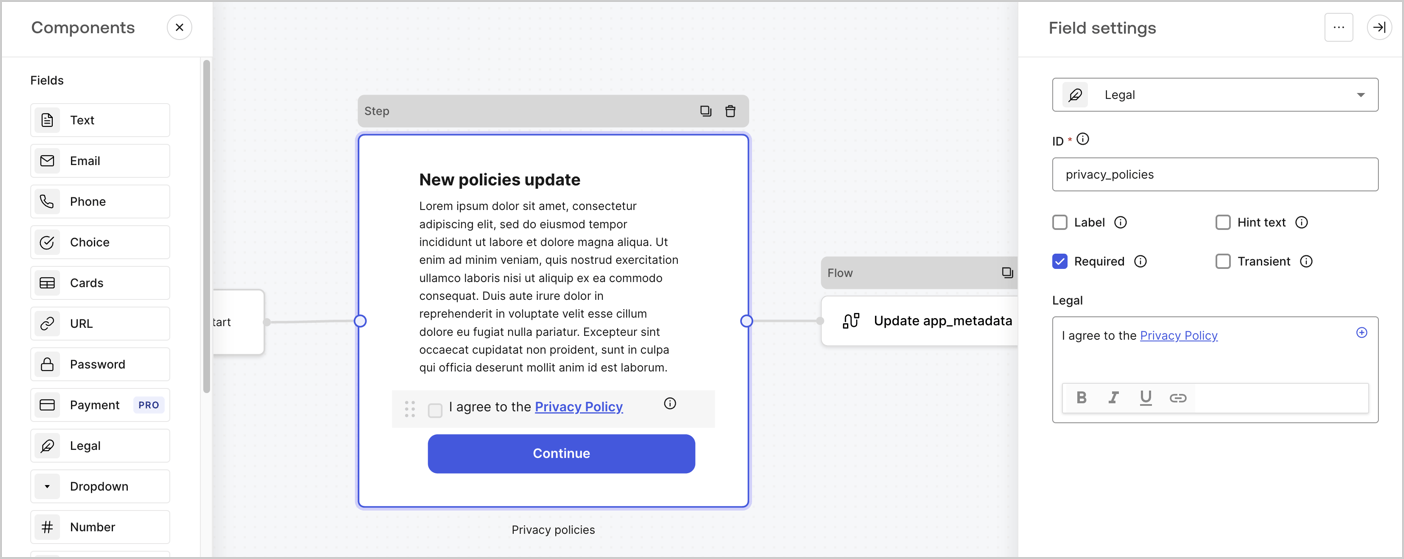
The Step node is the graphical interface visible to users. Add [Fields](/docs/customize/forms/nodes-and-components) to the Step node to collect the new agreement acceptance value by following these steps:

1. Drag a **Rich text** field from the **Components menu** into the **Step** node.

   * **Rich text**: Enter a description of your privacy policies updates.
   * Select **Save**.
2. Drag a **Legal** field into the **Step** node.

   * **ID**: Enter `privacy_policies`.
   * **Required**: Enable the checkbox.
   * **Legal**: Enter `I agree to the Privacy Policy`.
   * Select **Save**.
3. Select **Publish** to save.
<Frame>
  <img src="https://mintcdn.com/docs-staging-chore-rate-limits-autoupdate/C2Z5QMmOTwDj5H1z/docs/images/cdy7uua7fh8z/59zFFjQjAnjogkc2QGIqqJ/0ad66b1b636544122aa4e65968b76c2c/privacy-policy-step-node.png?fit=max&auto=format&n=C2Z5QMmOTwDj5H1z&q=85&s=b7d346b55e95ad3b1ae0e9200707fb54" alt="Dashboard > Actions > Forms > Use case privacy policy step node" data-og-width="1404" width="1404" data-og-height="559" height="559" data-path="docs/images/cdy7uua7fh8z/59zFFjQjAnjogkc2QGIqqJ/0ad66b1b636544122aa4e65968b76c2c/privacy-policy-step-node.png" data-optimize="true" data-opv="3" srcset="https://mintcdn.com/docs-staging-chore-rate-limits-autoupdate/C2Z5QMmOTwDj5H1z/docs/images/cdy7uua7fh8z/59zFFjQjAnjogkc2QGIqqJ/0ad66b1b636544122aa4e65968b76c2c/privacy-policy-step-node.png?w=280&fit=max&auto=format&n=C2Z5QMmOTwDj5H1z&q=85&s=4e760725077d46eaa79bce3db44e15b4 280w, https://mintcdn.com/docs-staging-chore-rate-limits-autoupdate/C2Z5QMmOTwDj5H1z/docs/images/cdy7uua7fh8z/59zFFjQjAnjogkc2QGIqqJ/0ad66b1b636544122aa4e65968b76c2c/privacy-policy-step-node.png?w=560&fit=max&auto=format&n=C2Z5QMmOTwDj5H1z&q=85&s=84d018554646860cbdb23701e210dd82 560w, https://mintcdn.com/docs-staging-chore-rate-limits-autoupdate/C2Z5QMmOTwDj5H1z/docs/images/cdy7uua7fh8z/59zFFjQjAnjogkc2QGIqqJ/0ad66b1b636544122aa4e65968b76c2c/privacy-policy-step-node.png?w=840&fit=max&auto=format&n=C2Z5QMmOTwDj5H1z&q=85&s=89a8d55225827ef6c952cda0dcfa7670 840w, https://mintcdn.com/docs-staging-chore-rate-limits-autoupdate/C2Z5QMmOTwDj5H1z/docs/images/cdy7uua7fh8z/59zFFjQjAnjogkc2QGIqqJ/0ad66b1b636544122aa4e65968b76c2c/privacy-policy-step-node.png?w=1100&fit=max&auto=format&n=C2Z5QMmOTwDj5H1z&q=85&s=b7a777879c2d397a9547c79c43fe522e 1100w, https://mintcdn.com/docs-staging-chore-rate-limits-autoupdate/C2Z5QMmOTwDj5H1z/docs/images/cdy7uua7fh8z/59zFFjQjAnjogkc2QGIqqJ/0ad66b1b636544122aa4e65968b76c2c/privacy-policy-step-node.png?w=1650&fit=max&auto=format&n=C2Z5QMmOTwDj5H1z&q=85&s=f77318697faa21bb14009628b6d5f4e9 1650w, https://mintcdn.com/docs-staging-chore-rate-limits-autoupdate/C2Z5QMmOTwDj5H1z/docs/images/cdy7uua7fh8z/59zFFjQjAnjogkc2QGIqqJ/0ad66b1b636544122aa4e65968b76c2c/privacy-policy-step-node.png?w=2500&fit=max&auto=format&n=C2Z5QMmOTwDj5H1z&q=85&s=153244d9ad351d442d1ab53536ad5822 2500w" />
</Frame>

### Configure the Flow node

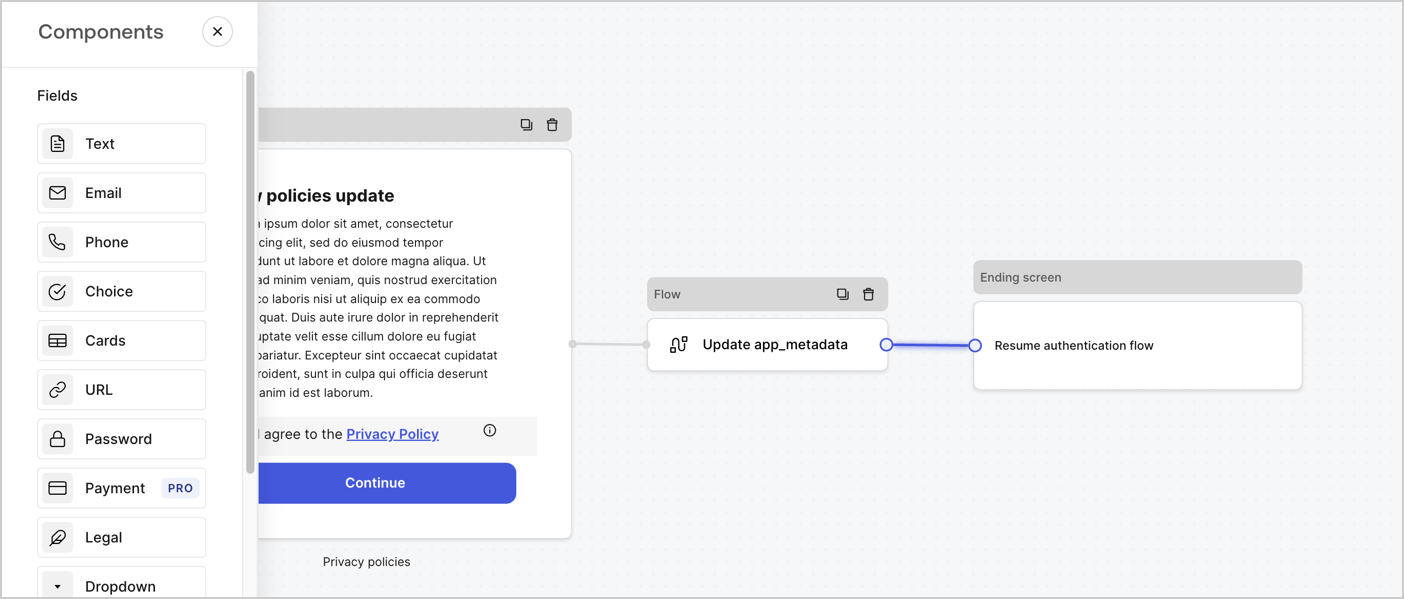
Add a **Flow** node after the **Step** node to update the `app_metadata` and resume the authentication flow by following these steps:

1. Select **Flow** from the bottom of the Form editor.
2. Remove the existing link between the **Step** and **Ending Screen** nodes.
3. Select the new **Flow** > **Click to add a flow** > **Create a new flow.**

   * Enter `Update app_metadata` in the **Name** field.
   * Select **Create**.
   * Select **Save**.
4. Link the **Flow** node to the **Step** and **Ending Screen** nodes as pictured below.
5. Select **Publish** to save.
<Frame>
  <img src="https://mintcdn.com/docs-staging-chore-rate-limits-autoupdate/zh1JjItaPMJGfpQa/docs/images/cdy7uua7fh8z/6YIkzm7SrpM9LW76AXuRzh/353c518fe82bbaa440836da1d83596d6/link-policies.png?fit=max&auto=format&n=zh1JjItaPMJGfpQa&q=85&s=1f8bf36e2904d9b88666265e4472f6d3" alt="Dashboard > Actions > Forms > Form" data-og-width="1404" width="1404" data-og-height="599" height="599" data-path="docs/images/cdy7uua7fh8z/6YIkzm7SrpM9LW76AXuRzh/353c518fe82bbaa440836da1d83596d6/link-policies.png" data-optimize="true" data-opv="3" srcset="https://mintcdn.com/docs-staging-chore-rate-limits-autoupdate/zh1JjItaPMJGfpQa/docs/images/cdy7uua7fh8z/6YIkzm7SrpM9LW76AXuRzh/353c518fe82bbaa440836da1d83596d6/link-policies.png?w=280&fit=max&auto=format&n=zh1JjItaPMJGfpQa&q=85&s=d590fd10f33658799b802d6adbf429a5 280w, https://mintcdn.com/docs-staging-chore-rate-limits-autoupdate/zh1JjItaPMJGfpQa/docs/images/cdy7uua7fh8z/6YIkzm7SrpM9LW76AXuRzh/353c518fe82bbaa440836da1d83596d6/link-policies.png?w=560&fit=max&auto=format&n=zh1JjItaPMJGfpQa&q=85&s=778da82d3f60111dc73e9080dc63d3eb 560w, https://mintcdn.com/docs-staging-chore-rate-limits-autoupdate/zh1JjItaPMJGfpQa/docs/images/cdy7uua7fh8z/6YIkzm7SrpM9LW76AXuRzh/353c518fe82bbaa440836da1d83596d6/link-policies.png?w=840&fit=max&auto=format&n=zh1JjItaPMJGfpQa&q=85&s=a1ad09a69a49730135433c5263a5bed8 840w, https://mintcdn.com/docs-staging-chore-rate-limits-autoupdate/zh1JjItaPMJGfpQa/docs/images/cdy7uua7fh8z/6YIkzm7SrpM9LW76AXuRzh/353c518fe82bbaa440836da1d83596d6/link-policies.png?w=1100&fit=max&auto=format&n=zh1JjItaPMJGfpQa&q=85&s=1ddc8091a3632f0d65ce1a970e09939a 1100w, https://mintcdn.com/docs-staging-chore-rate-limits-autoupdate/zh1JjItaPMJGfpQa/docs/images/cdy7uua7fh8z/6YIkzm7SrpM9LW76AXuRzh/353c518fe82bbaa440836da1d83596d6/link-policies.png?w=1650&fit=max&auto=format&n=zh1JjItaPMJGfpQa&q=85&s=879d51c92d3f5d7be1ac0e5f29e109c1 1650w, https://mintcdn.com/docs-staging-chore-rate-limits-autoupdate/zh1JjItaPMJGfpQa/docs/images/cdy7uua7fh8z/6YIkzm7SrpM9LW76AXuRzh/353c518fe82bbaa440836da1d83596d6/link-policies.png?w=2500&fit=max&auto=format&n=zh1JjItaPMJGfpQa&q=85&s=7962becf1807ad5554a9afb610005cd7 2500w" />
</Frame>

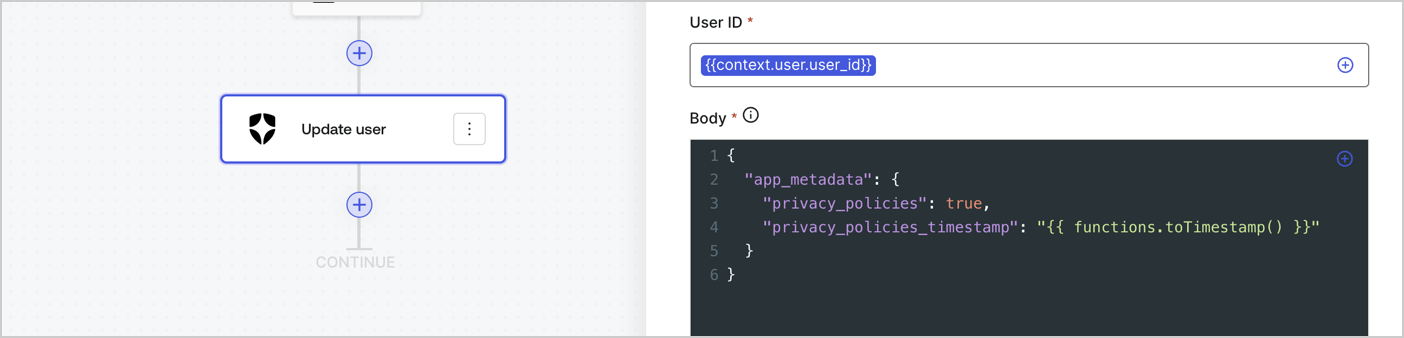
Add an Auth0 Update user action to the flow by following these steps:

1. Select the **Flow** **Update app\_metadata** > **Edit flow** to open the Flow editor in a new tab.
2. Below the StartAction, select the **+** icon to add an **Update user** action. Complete the fields below, then select **Save** to continue.

   * **Connection**: Select from the dropdown the Vault connection to your M2M application.

   * **User ID**: Enter `{{context.user.user_id}}`.

   * **Body**: Copy and paste the following code to update the app\_metadata with the privacy\_policies and privacy\_policies\_timestamp properties.

     ```text lines theme={null}
     {
       "app_metadata": {
         "privacy_policies": true,
         "privacy_policies_timestamp": "{{ functions.toTimestamp() }}"
       }
     }
     ```

   * Select **Save**.
3. Select **Publish** to save.
<Frame>
  <img src="https://mintcdn.com/docs-staging-chore-rate-limits-autoupdate/RRH2Ir8Y4JiSEe0F/docs/images/cdy7uua7fh8z/CvMNIwWrOUwaFW4X3G28p/1fb70ae57a20749d9ffaaba8dc0b7e26/update-user-privacy.png?fit=max&auto=format&n=RRH2Ir8Y4JiSEe0F&q=85&s=50d22c69a84e63cd786dadb445b06f18" alt="Dashboard > Actions > Forms > User case privacy policy code" data-og-width="1404" width="1404" data-og-height="338" height="338" data-path="docs/images/cdy7uua7fh8z/CvMNIwWrOUwaFW4X3G28p/1fb70ae57a20749d9ffaaba8dc0b7e26/update-user-privacy.png" data-optimize="true" data-opv="3" srcset="https://mintcdn.com/docs-staging-chore-rate-limits-autoupdate/RRH2Ir8Y4JiSEe0F/docs/images/cdy7uua7fh8z/CvMNIwWrOUwaFW4X3G28p/1fb70ae57a20749d9ffaaba8dc0b7e26/update-user-privacy.png?w=280&fit=max&auto=format&n=RRH2Ir8Y4JiSEe0F&q=85&s=40885671cb319a5aded44a3c18d5fbea 280w, https://mintcdn.com/docs-staging-chore-rate-limits-autoupdate/RRH2Ir8Y4JiSEe0F/docs/images/cdy7uua7fh8z/CvMNIwWrOUwaFW4X3G28p/1fb70ae57a20749d9ffaaba8dc0b7e26/update-user-privacy.png?w=560&fit=max&auto=format&n=RRH2Ir8Y4JiSEe0F&q=85&s=9d46f3fe5ae20e09f0efe59df074a60a 560w, https://mintcdn.com/docs-staging-chore-rate-limits-autoupdate/RRH2Ir8Y4JiSEe0F/docs/images/cdy7uua7fh8z/CvMNIwWrOUwaFW4X3G28p/1fb70ae57a20749d9ffaaba8dc0b7e26/update-user-privacy.png?w=840&fit=max&auto=format&n=RRH2Ir8Y4JiSEe0F&q=85&s=4c25ecaf7ad59d2bcf412f6cb56c3ac1 840w, https://mintcdn.com/docs-staging-chore-rate-limits-autoupdate/RRH2Ir8Y4JiSEe0F/docs/images/cdy7uua7fh8z/CvMNIwWrOUwaFW4X3G28p/1fb70ae57a20749d9ffaaba8dc0b7e26/update-user-privacy.png?w=1100&fit=max&auto=format&n=RRH2Ir8Y4JiSEe0F&q=85&s=d2b5a71322621475a0862f9b4c988d95 1100w, https://mintcdn.com/docs-staging-chore-rate-limits-autoupdate/RRH2Ir8Y4JiSEe0F/docs/images/cdy7uua7fh8z/CvMNIwWrOUwaFW4X3G28p/1fb70ae57a20749d9ffaaba8dc0b7e26/update-user-privacy.png?w=1650&fit=max&auto=format&n=RRH2Ir8Y4JiSEe0F&q=85&s=4724fec704cbfa315c5af1eaa836f07d 1650w, https://mintcdn.com/docs-staging-chore-rate-limits-autoupdate/RRH2Ir8Y4JiSEe0F/docs/images/cdy7uua7fh8z/CvMNIwWrOUwaFW4X3G28p/1fb70ae57a20749d9ffaaba8dc0b7e26/update-user-privacy.png?w=2500&fit=max&auto=format&n=RRH2Ir8Y4JiSEe0F&q=85&s=50e7cef3d415d087640da3a44519c026 2500w" />
</Frame>

<Callout icon="file-lines" color="#0EA5E9" iconType="regular">
  The flow **Update app\_metadata** adds a `privacy_policies true` value to the app`_metadata` object and also generates a timestamp with a [helper function.](/docs/customize/forms/variables)
</Callout>

## Retrieve the form render code

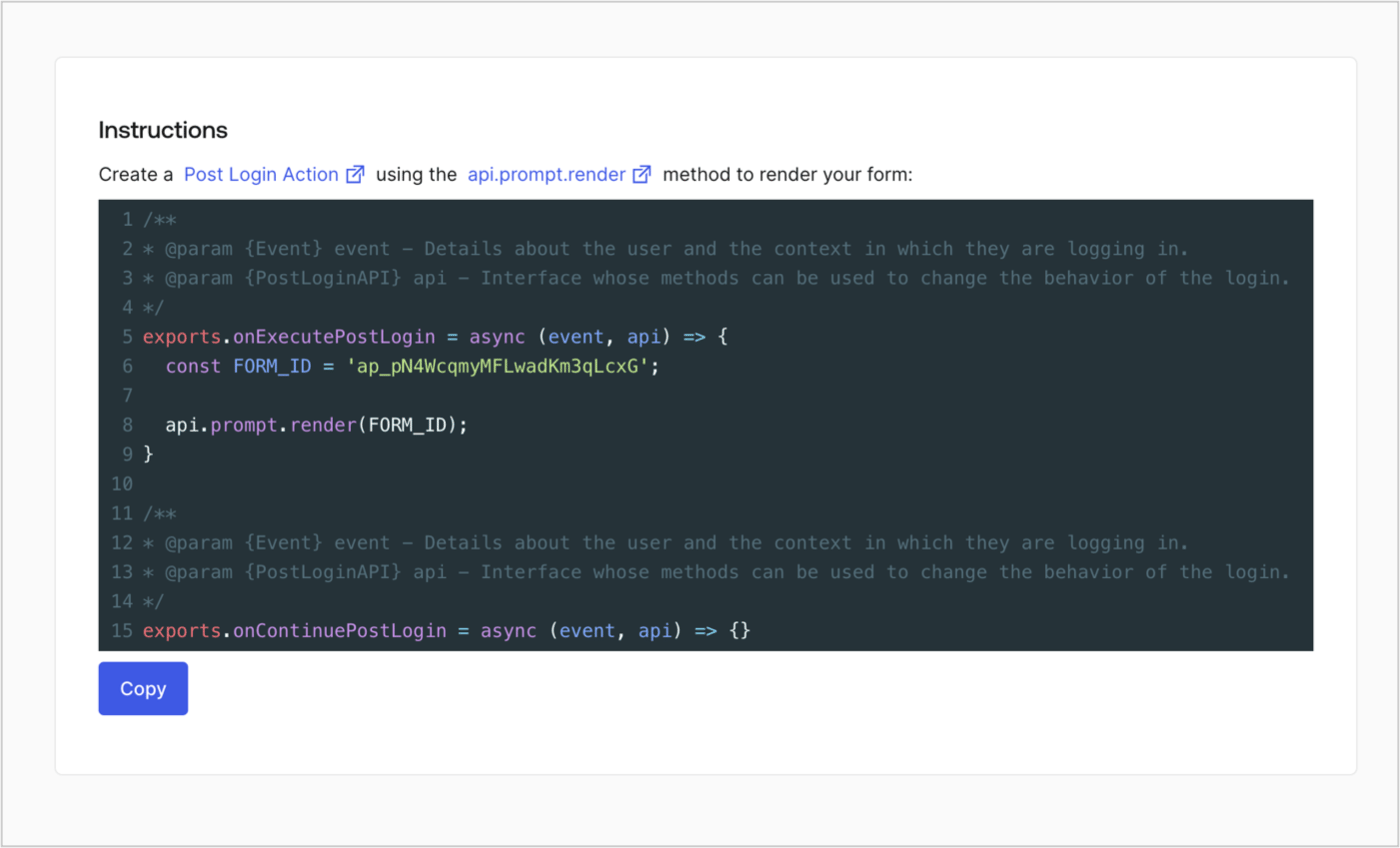
Retrieve your form render code to visually render the form with a custom Post Login Action by following these steps:

* From the Form editor, select **`<> Render`**.
* Select **Copy**.
<Frame>
  <img src="https://mintcdn.com/docs-staging-chore-rate-limits-autoupdate/lyU4PfVfvI6-2PSs/docs/images/cdy7uua7fh8z/2EIUzc539sq9lwoTKbjoJv/496a864c0fc44a782c9cadca119dbfb0/embed.png?fit=max&auto=format&n=lyU4PfVfvI6-2PSs&q=85&s=03a83b00b049f6f8adc43a978de10b76" alt="Dashboard > Actions > Forms > Form > Embed" data-og-width="1400" width="1400" data-og-height="848" height="848" data-path="docs/images/cdy7uua7fh8z/2EIUzc539sq9lwoTKbjoJv/496a864c0fc44a782c9cadca119dbfb0/embed.png" data-optimize="true" data-opv="3" srcset="https://mintcdn.com/docs-staging-chore-rate-limits-autoupdate/lyU4PfVfvI6-2PSs/docs/images/cdy7uua7fh8z/2EIUzc539sq9lwoTKbjoJv/496a864c0fc44a782c9cadca119dbfb0/embed.png?w=280&fit=max&auto=format&n=lyU4PfVfvI6-2PSs&q=85&s=739c91854c32fe019aa448ea3f658fe9 280w, https://mintcdn.com/docs-staging-chore-rate-limits-autoupdate/lyU4PfVfvI6-2PSs/docs/images/cdy7uua7fh8z/2EIUzc539sq9lwoTKbjoJv/496a864c0fc44a782c9cadca119dbfb0/embed.png?w=560&fit=max&auto=format&n=lyU4PfVfvI6-2PSs&q=85&s=d56f20c60510e9f2b1dd9a848d16b574 560w, https://mintcdn.com/docs-staging-chore-rate-limits-autoupdate/lyU4PfVfvI6-2PSs/docs/images/cdy7uua7fh8z/2EIUzc539sq9lwoTKbjoJv/496a864c0fc44a782c9cadca119dbfb0/embed.png?w=840&fit=max&auto=format&n=lyU4PfVfvI6-2PSs&q=85&s=3005db68712173f22f78a1dbc65a7fb3 840w, https://mintcdn.com/docs-staging-chore-rate-limits-autoupdate/lyU4PfVfvI6-2PSs/docs/images/cdy7uua7fh8z/2EIUzc539sq9lwoTKbjoJv/496a864c0fc44a782c9cadca119dbfb0/embed.png?w=1100&fit=max&auto=format&n=lyU4PfVfvI6-2PSs&q=85&s=dedcdbe7f3617e903880016902395b0a 1100w, https://mintcdn.com/docs-staging-chore-rate-limits-autoupdate/lyU4PfVfvI6-2PSs/docs/images/cdy7uua7fh8z/2EIUzc539sq9lwoTKbjoJv/496a864c0fc44a782c9cadca119dbfb0/embed.png?w=1650&fit=max&auto=format&n=lyU4PfVfvI6-2PSs&q=85&s=ac599bf26f1e69a90527240023d930e7 1650w, https://mintcdn.com/docs-staging-chore-rate-limits-autoupdate/lyU4PfVfvI6-2PSs/docs/images/cdy7uua7fh8z/2EIUzc539sq9lwoTKbjoJv/496a864c0fc44a782c9cadca119dbfb0/embed.png?w=2500&fit=max&auto=format&n=lyU4PfVfvI6-2PSs&q=85&s=66ffbc6451a9bb628bac4b844162acd5 2500w" />
</Frame>

## Create a Post Login Action

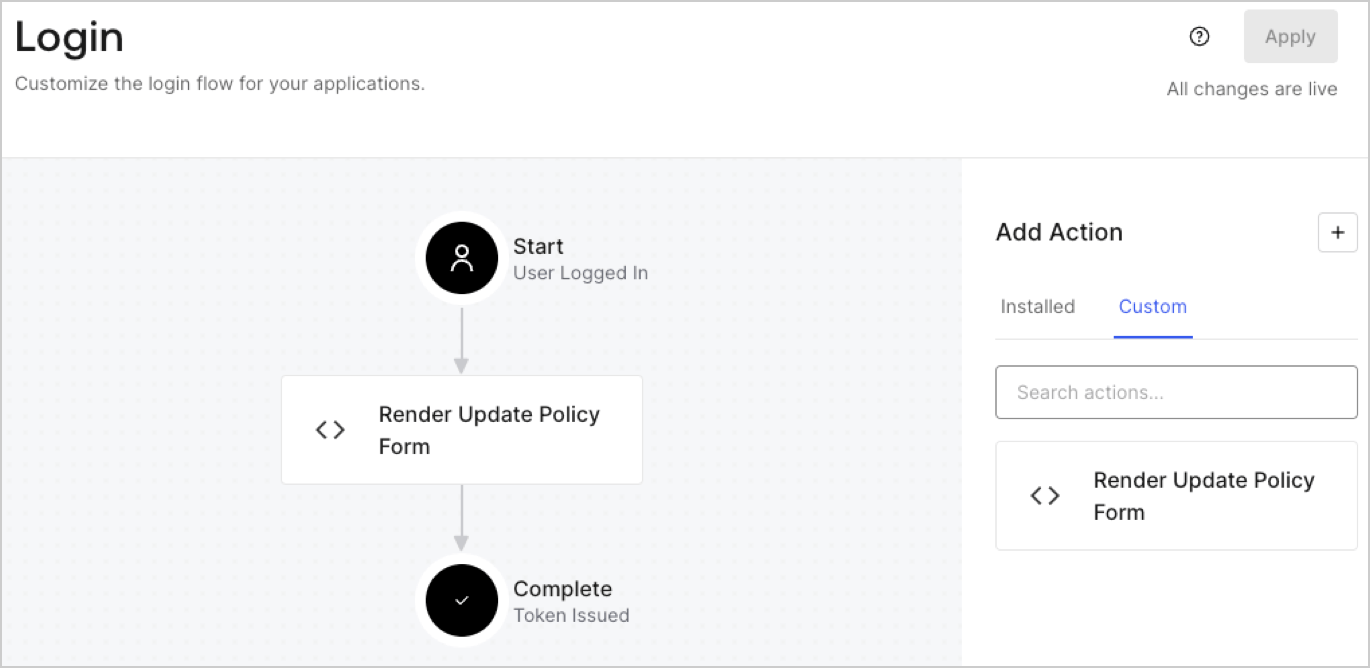
Create a post-login Action to render your form by following these steps:

1. Navigate to **Auth0 Dashboard > Actions > Flows > Login.**
2. Select the **+** icon and Select **Build from scratch**:

   * **Name**: Enter `Render Update Policy Form`.
   * **Trigger**: Select `Login / Post Login`.
   * **Runtime**: Select the recommended version.
3. Select **Create**.

To configure the post-login Action:

1. Delete the existing code from the Code editor.
2. Paste the form render code into the Code editor.
3. Edit the code to define the conditional logic that will render the form.

   ```javascript lines theme={null}
   /**
   * @param {Event} event - Details about the user and the context in which they are logging in.
   * @param {PostLoginAPI} api - Interface whose methods can be used to change the behavior of the login.
   */
   exports.onExecutePostLogin = async (event, api) => {
     const FORM_ID = 'REPLACE_WITH_YOUR_FORM_ID';

     if (event.user.app_metadata.privacy_policies !== true) {
       api.prompt.render(FORM_ID);
     }
   }

   exports.onContinuePostLogin = async (event, api) => { }
   ```

   <Callout icon="file-lines" color="#0EA5E9" iconType="regular">
     The example code above will render the form when a user is missing the app metadata `privacy_policies` property.
   </Callout>
4. Select **Deploy.**
5. Drag and Drop the **Render Update Policy Form** Action to the **Login** flow.
   <Frame>
     <img src="https://mintcdn.com/docs-staging-chore-rate-limits-autoupdate/blIxFTLMPVCloHiJ/docs/images/cdy7uua7fh8z/5TOwDgevZsBqd7yZynUYWU/41ca909dc3007aed4f40ff794a05efa5/postlogin.png?fit=max&auto=format&n=blIxFTLMPVCloHiJ&q=85&s=db0ee5f15375298fa446c5461e10348d" alt="Dashboard > Forms > Use Case > Render update policy form login action" data-og-width="1370" width="1370" data-og-height="668" height="668" data-path="docs/images/cdy7uua7fh8z/5TOwDgevZsBqd7yZynUYWU/41ca909dc3007aed4f40ff794a05efa5/postlogin.png" data-optimize="true" data-opv="3" srcset="https://mintcdn.com/docs-staging-chore-rate-limits-autoupdate/blIxFTLMPVCloHiJ/docs/images/cdy7uua7fh8z/5TOwDgevZsBqd7yZynUYWU/41ca909dc3007aed4f40ff794a05efa5/postlogin.png?w=280&fit=max&auto=format&n=blIxFTLMPVCloHiJ&q=85&s=158caf891953407180db2cc6bac66c80 280w, https://mintcdn.com/docs-staging-chore-rate-limits-autoupdate/blIxFTLMPVCloHiJ/docs/images/cdy7uua7fh8z/5TOwDgevZsBqd7yZynUYWU/41ca909dc3007aed4f40ff794a05efa5/postlogin.png?w=560&fit=max&auto=format&n=blIxFTLMPVCloHiJ&q=85&s=a05bebe15b6cad83f4c21b3fe508f09e 560w, https://mintcdn.com/docs-staging-chore-rate-limits-autoupdate/blIxFTLMPVCloHiJ/docs/images/cdy7uua7fh8z/5TOwDgevZsBqd7yZynUYWU/41ca909dc3007aed4f40ff794a05efa5/postlogin.png?w=840&fit=max&auto=format&n=blIxFTLMPVCloHiJ&q=85&s=23f520c25db2882ad26ce972ddd86f1b 840w, https://mintcdn.com/docs-staging-chore-rate-limits-autoupdate/blIxFTLMPVCloHiJ/docs/images/cdy7uua7fh8z/5TOwDgevZsBqd7yZynUYWU/41ca909dc3007aed4f40ff794a05efa5/postlogin.png?w=1100&fit=max&auto=format&n=blIxFTLMPVCloHiJ&q=85&s=704a70c06815847bb68f23acb0689152 1100w, https://mintcdn.com/docs-staging-chore-rate-limits-autoupdate/blIxFTLMPVCloHiJ/docs/images/cdy7uua7fh8z/5TOwDgevZsBqd7yZynUYWU/41ca909dc3007aed4f40ff794a05efa5/postlogin.png?w=1650&fit=max&auto=format&n=blIxFTLMPVCloHiJ&q=85&s=5699b200bdfc67dad1cb05544ac66a47 1650w, https://mintcdn.com/docs-staging-chore-rate-limits-autoupdate/blIxFTLMPVCloHiJ/docs/images/cdy7uua7fh8z/5TOwDgevZsBqd7yZynUYWU/41ca909dc3007aed4f40ff794a05efa5/postlogin.png?w=2500&fit=max&auto=format&n=blIxFTLMPVCloHiJ&q=85&s=3739db4ea6068ee2645a6540f97edb77 2500w" />
   </Frame>
6. Select **Apply.**

### Test implementation

Test the implementation by following these steps:

1. Log in with an existing user whose app`_metadata` attribute `privacy_policies` does not have a value.
2. The post-login Action in the Login flow will render the form and prompt for acceptance.
3. Select **Auth0 Dashboard > User Management > Users,** locate the user and verify that the `app_metadata` attribute `privacy_policies` contains a `true` value and a timestamp.
