> ## Documentation Index
> Fetch the complete documentation index at: https://docs-staging-chore-rate-limits-autoupdate.mintlify.site/llms.txt
> Use this file to discover all available pages before exploring further.

> Learn how to configure a progressive profile form using Forms for Actions

# Use Cases: Configure a progressive profile form using Forms

<Card title="Before you start">
  1. Create a [Machine-to-Machine Application](/docs/get-started/auth0-overview/create-applications/machine-to-machine-apps) with the following scopes enabled:

  * `read:users`
  * `update:users`
  * `create:users`
  * `read:users_app_metadata`
  * `update:users_app_metadata`
  * `create:users_app_metadata`

  2. Add a [Vault connection](/docs/customize/forms/vault) using the M2M application credentials.
</Card>

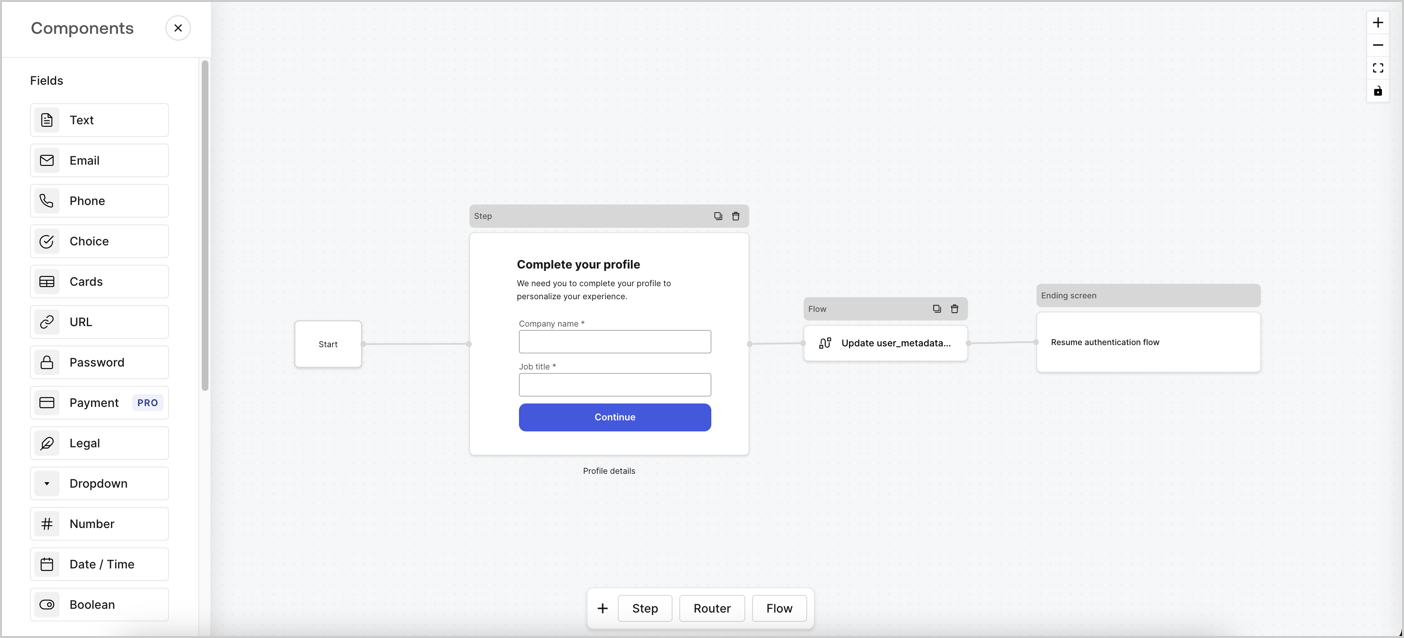
Forms for Actions allows you to create progressive profiling flows to decide when to prompt users to collect missing information, such as company name and job title, and store them as `user_metadata` attributes.
<Frame>
  <img src="https://mintcdn.com/docs-staging-chore-rate-limits-autoupdate/a5AYDRx2TsBLHMik/docs/images/cdy7uua7fh8z/xUx9YmnHvnAqL19JvNtNP/60dae88f893d4ebe8e3523421e960596/Progressive-profle-overview.png?fit=max&auto=format&n=a5AYDRx2TsBLHMik&q=85&s=519c6d5deee7e86abfaddf6b4ef81bd1" alt="Dashboard > Actions > Forms > Form" data-og-width="1404" width="1404" data-og-height="638" height="638" data-path="docs/images/cdy7uua7fh8z/xUx9YmnHvnAqL19JvNtNP/60dae88f893d4ebe8e3523421e960596/Progressive-profle-overview.png" data-optimize="true" data-opv="3" srcset="https://mintcdn.com/docs-staging-chore-rate-limits-autoupdate/a5AYDRx2TsBLHMik/docs/images/cdy7uua7fh8z/xUx9YmnHvnAqL19JvNtNP/60dae88f893d4ebe8e3523421e960596/Progressive-profle-overview.png?w=280&fit=max&auto=format&n=a5AYDRx2TsBLHMik&q=85&s=cd4806b3a460b2ba3dd46686d4411e3b 280w, https://mintcdn.com/docs-staging-chore-rate-limits-autoupdate/a5AYDRx2TsBLHMik/docs/images/cdy7uua7fh8z/xUx9YmnHvnAqL19JvNtNP/60dae88f893d4ebe8e3523421e960596/Progressive-profle-overview.png?w=560&fit=max&auto=format&n=a5AYDRx2TsBLHMik&q=85&s=6eda8e1ecd9feda546ac6d1fa712a53b 560w, https://mintcdn.com/docs-staging-chore-rate-limits-autoupdate/a5AYDRx2TsBLHMik/docs/images/cdy7uua7fh8z/xUx9YmnHvnAqL19JvNtNP/60dae88f893d4ebe8e3523421e960596/Progressive-profle-overview.png?w=840&fit=max&auto=format&n=a5AYDRx2TsBLHMik&q=85&s=b2aee216aef6be39100d715b5c4079ba 840w, https://mintcdn.com/docs-staging-chore-rate-limits-autoupdate/a5AYDRx2TsBLHMik/docs/images/cdy7uua7fh8z/xUx9YmnHvnAqL19JvNtNP/60dae88f893d4ebe8e3523421e960596/Progressive-profle-overview.png?w=1100&fit=max&auto=format&n=a5AYDRx2TsBLHMik&q=85&s=9687bf1161ebee2e7bbf5cabf1d42dc4 1100w, https://mintcdn.com/docs-staging-chore-rate-limits-autoupdate/a5AYDRx2TsBLHMik/docs/images/cdy7uua7fh8z/xUx9YmnHvnAqL19JvNtNP/60dae88f893d4ebe8e3523421e960596/Progressive-profle-overview.png?w=1650&fit=max&auto=format&n=a5AYDRx2TsBLHMik&q=85&s=f5fb3010a0b91bf906458601d316e8ac 1650w, https://mintcdn.com/docs-staging-chore-rate-limits-autoupdate/a5AYDRx2TsBLHMik/docs/images/cdy7uua7fh8z/xUx9YmnHvnAqL19JvNtNP/60dae88f893d4ebe8e3523421e960596/Progressive-profle-overview.png?w=2500&fit=max&auto=format&n=a5AYDRx2TsBLHMik&q=85&s=e161ac28a7d2c747012a0b61827b4c2e 2500w" />
</Frame>

The sections below outline how you can create a progressive profile form using nodes and flows, along with steps for adding your form to a [Post Login Action](/docs/customize/actions/explore-triggers/signup-and-login-triggers/login-trigger).

## Create a form from scratch

Follow these steps to create a form to gather information:

1. Open the Form editor by selecting **Auth0 Dashboard > Actions > Forms.**
2. Select **Create Form** > **Start from scratch**.

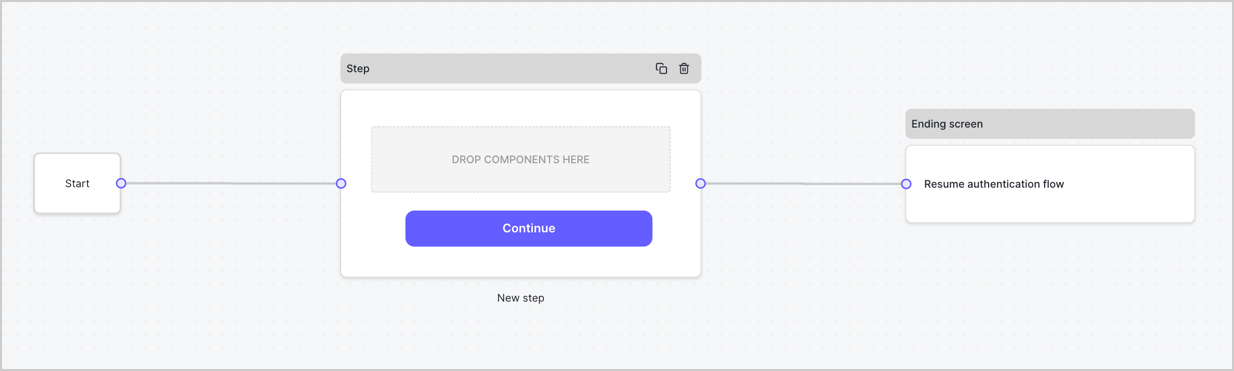
By default, a new form contains a Start node, a Step node, and an Ending screen node.
<Frame>
  <img src="https://mintcdn.com/docs-staging-chore-rate-limits-autoupdate/u6rRSZjxGLJ2P0HJ/docs/images/cdy7uua7fh8z/2TZ9jSjgEcARFpULI6hz4R/a4319a1bd482f2ee5cc23100fdb2f42c/New-form-Forms-for-action-use-case.png?fit=max&auto=format&n=u6rRSZjxGLJ2P0HJ&q=85&s=e243c9feebbf9f4d1bb705dee067ee16" alt="Dashboard > Forms > Use Cases > Form" data-og-width="1234" width="1234" data-og-height="371" height="371" data-path="docs/images/cdy7uua7fh8z/2TZ9jSjgEcARFpULI6hz4R/a4319a1bd482f2ee5cc23100fdb2f42c/New-form-Forms-for-action-use-case.png" data-optimize="true" data-opv="3" srcset="https://mintcdn.com/docs-staging-chore-rate-limits-autoupdate/u6rRSZjxGLJ2P0HJ/docs/images/cdy7uua7fh8z/2TZ9jSjgEcARFpULI6hz4R/a4319a1bd482f2ee5cc23100fdb2f42c/New-form-Forms-for-action-use-case.png?w=280&fit=max&auto=format&n=u6rRSZjxGLJ2P0HJ&q=85&s=9f25d57c9294c9b7febe300182720aef 280w, https://mintcdn.com/docs-staging-chore-rate-limits-autoupdate/u6rRSZjxGLJ2P0HJ/docs/images/cdy7uua7fh8z/2TZ9jSjgEcARFpULI6hz4R/a4319a1bd482f2ee5cc23100fdb2f42c/New-form-Forms-for-action-use-case.png?w=560&fit=max&auto=format&n=u6rRSZjxGLJ2P0HJ&q=85&s=c75cb1448630425cbfd57ab84a4849fd 560w, https://mintcdn.com/docs-staging-chore-rate-limits-autoupdate/u6rRSZjxGLJ2P0HJ/docs/images/cdy7uua7fh8z/2TZ9jSjgEcARFpULI6hz4R/a4319a1bd482f2ee5cc23100fdb2f42c/New-form-Forms-for-action-use-case.png?w=840&fit=max&auto=format&n=u6rRSZjxGLJ2P0HJ&q=85&s=46d82a6fe9f05e6283f0f70fd87b9c04 840w, https://mintcdn.com/docs-staging-chore-rate-limits-autoupdate/u6rRSZjxGLJ2P0HJ/docs/images/cdy7uua7fh8z/2TZ9jSjgEcARFpULI6hz4R/a4319a1bd482f2ee5cc23100fdb2f42c/New-form-Forms-for-action-use-case.png?w=1100&fit=max&auto=format&n=u6rRSZjxGLJ2P0HJ&q=85&s=a4312fb0942060b50098e3981b236315 1100w, https://mintcdn.com/docs-staging-chore-rate-limits-autoupdate/u6rRSZjxGLJ2P0HJ/docs/images/cdy7uua7fh8z/2TZ9jSjgEcARFpULI6hz4R/a4319a1bd482f2ee5cc23100fdb2f42c/New-form-Forms-for-action-use-case.png?w=1650&fit=max&auto=format&n=u6rRSZjxGLJ2P0HJ&q=85&s=0b2db4c25869c2f95f43075133894281 1650w, https://mintcdn.com/docs-staging-chore-rate-limits-autoupdate/u6rRSZjxGLJ2P0HJ/docs/images/cdy7uua7fh8z/2TZ9jSjgEcARFpULI6hz4R/a4319a1bd482f2ee5cc23100fdb2f42c/New-form-Forms-for-action-use-case.png?w=2500&fit=max&auto=format&n=u6rRSZjxGLJ2P0HJ&q=85&s=38dfe9e706fda9278f48f232d7f9e97a 2500w" />
</Frame>

### Configure the Step node

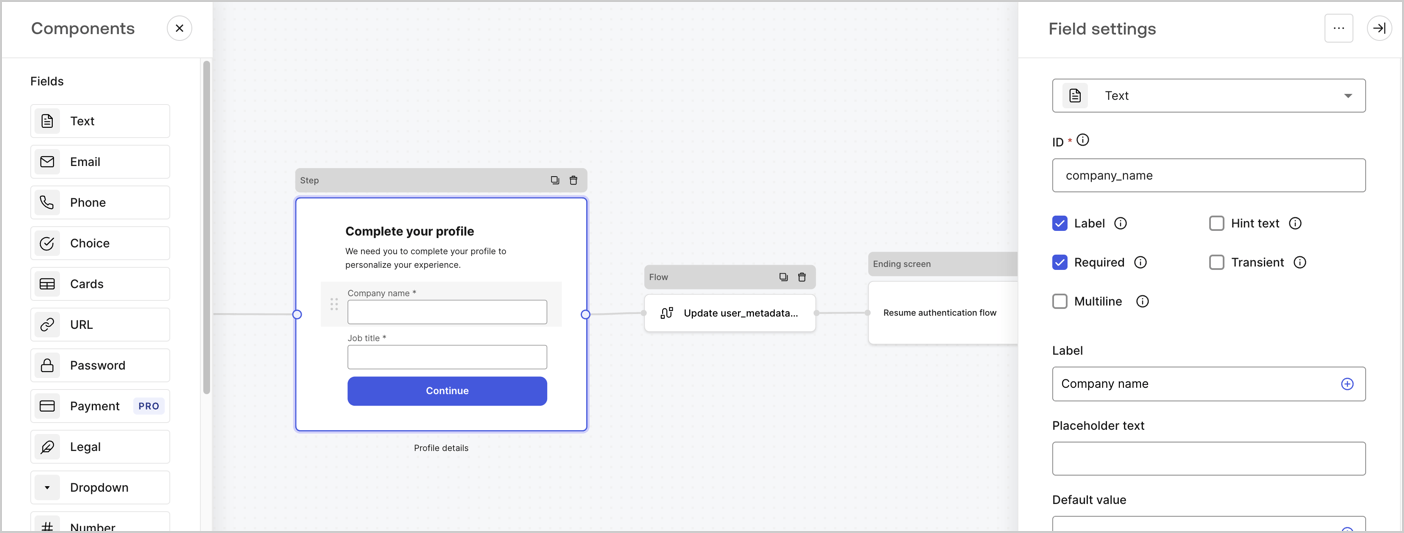
The Step node is the graphical interface visible to users. Add [Fields](/docs/customize/forms/nodes-and-components) to the Step node to collect the user's company name and job title values by following these steps:

1. Drag a **Rich text** field from the **Components menu** into the **Step** node.

   * **Rich text**: Enter a custom message.

     * **Example**: `Complete your profile! We need you to complete your profile to personalize your experience.`
   * Select **Save**.
2. Drag a **Text** field into the **Step** node.

   * **ID**: Enter `company_name`.
   * **Label**: Enable the checkbox.
   * **Label**: Enter `Company name`.
   * **Required**: Enable the checkbox.
   * Select **Save**.
3. Drag a **Text** field into the **Step** node.

   1. **ID**: Enter `job_title`.
   2. **Label**: Enter `Job title`.
   3. **Label**: Enable the checkbox.
   4. **Required**: Enable the checkbox.
   5. Select **Save**.
4. Select **Publish** to save.
<Frame>
  <img src="https://mintcdn.com/docs-staging-chore-rate-limits-autoupdate/zh1JjItaPMJGfpQa/docs/images/cdy7uua7fh8z/6H1lRzwKyYioQyQJ9MtIoM/aa248e92fc028a68a5b92ff361a11644/progressive-profile-step.png?fit=max&auto=format&n=zh1JjItaPMJGfpQa&q=85&s=af5cb80a3aea98a190d86c9317b98d8b" alt="Dashboard > Actions > Forms > Form > Step node" data-og-width="1404" width="1404" data-og-height="533" height="533" data-path="docs/images/cdy7uua7fh8z/6H1lRzwKyYioQyQJ9MtIoM/aa248e92fc028a68a5b92ff361a11644/progressive-profile-step.png" data-optimize="true" data-opv="3" srcset="https://mintcdn.com/docs-staging-chore-rate-limits-autoupdate/zh1JjItaPMJGfpQa/docs/images/cdy7uua7fh8z/6H1lRzwKyYioQyQJ9MtIoM/aa248e92fc028a68a5b92ff361a11644/progressive-profile-step.png?w=280&fit=max&auto=format&n=zh1JjItaPMJGfpQa&q=85&s=8d350d49de6a50304ba67d411f98f70c 280w, https://mintcdn.com/docs-staging-chore-rate-limits-autoupdate/zh1JjItaPMJGfpQa/docs/images/cdy7uua7fh8z/6H1lRzwKyYioQyQJ9MtIoM/aa248e92fc028a68a5b92ff361a11644/progressive-profile-step.png?w=560&fit=max&auto=format&n=zh1JjItaPMJGfpQa&q=85&s=192180ea5ee8aa90ecd597bbecbad975 560w, https://mintcdn.com/docs-staging-chore-rate-limits-autoupdate/zh1JjItaPMJGfpQa/docs/images/cdy7uua7fh8z/6H1lRzwKyYioQyQJ9MtIoM/aa248e92fc028a68a5b92ff361a11644/progressive-profile-step.png?w=840&fit=max&auto=format&n=zh1JjItaPMJGfpQa&q=85&s=6c8a6b4c0b55d9142bf96fd4600aa738 840w, https://mintcdn.com/docs-staging-chore-rate-limits-autoupdate/zh1JjItaPMJGfpQa/docs/images/cdy7uua7fh8z/6H1lRzwKyYioQyQJ9MtIoM/aa248e92fc028a68a5b92ff361a11644/progressive-profile-step.png?w=1100&fit=max&auto=format&n=zh1JjItaPMJGfpQa&q=85&s=b85c1340ada2b6b9779dec4e8f8ad000 1100w, https://mintcdn.com/docs-staging-chore-rate-limits-autoupdate/zh1JjItaPMJGfpQa/docs/images/cdy7uua7fh8z/6H1lRzwKyYioQyQJ9MtIoM/aa248e92fc028a68a5b92ff361a11644/progressive-profile-step.png?w=1650&fit=max&auto=format&n=zh1JjItaPMJGfpQa&q=85&s=c6c988d01814b93cf79bda5e3812779a 1650w, https://mintcdn.com/docs-staging-chore-rate-limits-autoupdate/zh1JjItaPMJGfpQa/docs/images/cdy7uua7fh8z/6H1lRzwKyYioQyQJ9MtIoM/aa248e92fc028a68a5b92ff361a11644/progressive-profile-step.png?w=2500&fit=max&auto=format&n=zh1JjItaPMJGfpQa&q=85&s=df2235f34a0e0d5e2ad09eaa1248832b 2500w" />
</Frame>

### Configure the flow node

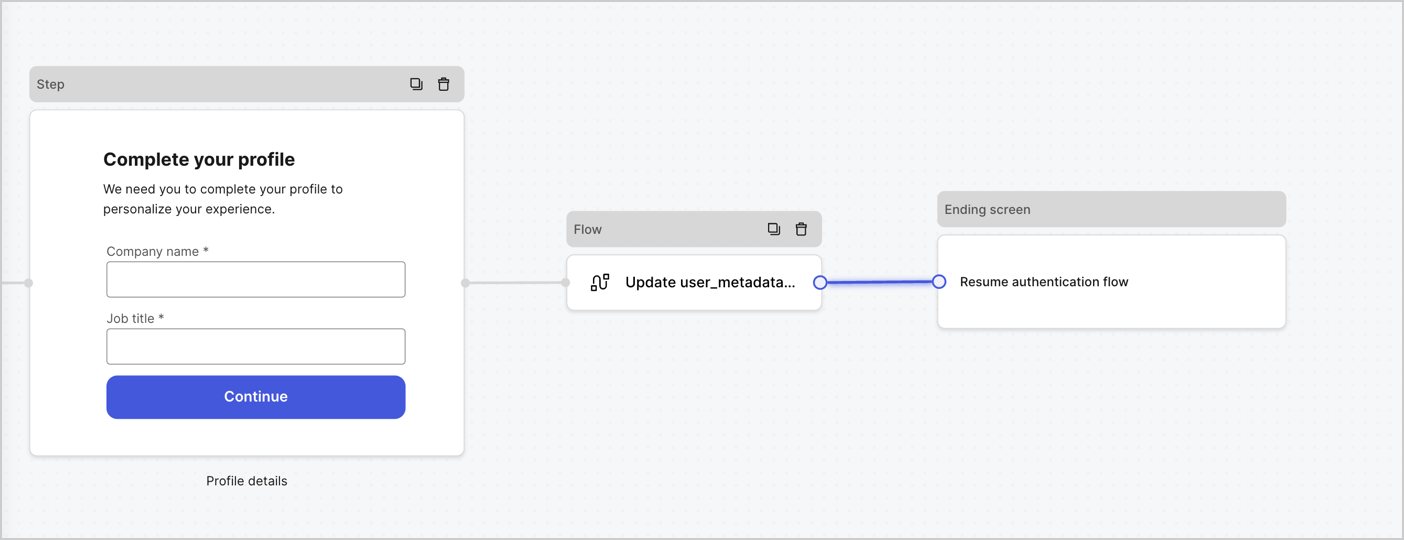
Add a **Flow** node after the **Step** node to update the `user_metadata` and resume the authentication flow by following these steps:

1. Select **Flow** from the bottom of the Form editor.
2. Remove the existing link between the **Step** and **Ending Screen** nodes.
3. Select the new **Flow** > **Click to add a flow** > **Create a new flow.**

   * Enter `Update user_metadata` in the **Name** field.
   * Select **Create**.
   * Select **Save**.
4. Link the **Flow** node to the **Step** and **Ending Screen** nodes as pictured below.
5. Select **Publish** to save.
<Frame>
  <img src="https://mintcdn.com/docs-staging-chore-rate-limits-autoupdate/C2Z5QMmOTwDj5H1z/docs/images/cdy7uua7fh8z/5C91DaWn4LGtJT9BF87ssu/095171d0c452a287c44bfde12fd6d13f/link-nodes.png?fit=max&auto=format&n=C2Z5QMmOTwDj5H1z&q=85&s=d2c63ffc19375b4b762e20874639dcc4" alt="Dashboard > Actions > Forms > Form" data-og-width="1404" width="1404" data-og-height="540" height="540" data-path="docs/images/cdy7uua7fh8z/5C91DaWn4LGtJT9BF87ssu/095171d0c452a287c44bfde12fd6d13f/link-nodes.png" data-optimize="true" data-opv="3" srcset="https://mintcdn.com/docs-staging-chore-rate-limits-autoupdate/C2Z5QMmOTwDj5H1z/docs/images/cdy7uua7fh8z/5C91DaWn4LGtJT9BF87ssu/095171d0c452a287c44bfde12fd6d13f/link-nodes.png?w=280&fit=max&auto=format&n=C2Z5QMmOTwDj5H1z&q=85&s=f9465d7d20ad7167d9c590d850773f24 280w, https://mintcdn.com/docs-staging-chore-rate-limits-autoupdate/C2Z5QMmOTwDj5H1z/docs/images/cdy7uua7fh8z/5C91DaWn4LGtJT9BF87ssu/095171d0c452a287c44bfde12fd6d13f/link-nodes.png?w=560&fit=max&auto=format&n=C2Z5QMmOTwDj5H1z&q=85&s=eef6867bad9137518973bed8adfad86e 560w, https://mintcdn.com/docs-staging-chore-rate-limits-autoupdate/C2Z5QMmOTwDj5H1z/docs/images/cdy7uua7fh8z/5C91DaWn4LGtJT9BF87ssu/095171d0c452a287c44bfde12fd6d13f/link-nodes.png?w=840&fit=max&auto=format&n=C2Z5QMmOTwDj5H1z&q=85&s=c8f1e5c82539c472c300796a8c910065 840w, https://mintcdn.com/docs-staging-chore-rate-limits-autoupdate/C2Z5QMmOTwDj5H1z/docs/images/cdy7uua7fh8z/5C91DaWn4LGtJT9BF87ssu/095171d0c452a287c44bfde12fd6d13f/link-nodes.png?w=1100&fit=max&auto=format&n=C2Z5QMmOTwDj5H1z&q=85&s=acd3950c77f0d062b3465504228c81ad 1100w, https://mintcdn.com/docs-staging-chore-rate-limits-autoupdate/C2Z5QMmOTwDj5H1z/docs/images/cdy7uua7fh8z/5C91DaWn4LGtJT9BF87ssu/095171d0c452a287c44bfde12fd6d13f/link-nodes.png?w=1650&fit=max&auto=format&n=C2Z5QMmOTwDj5H1z&q=85&s=bcb6215b1c2360f3ffeb8229c6ed90c8 1650w, https://mintcdn.com/docs-staging-chore-rate-limits-autoupdate/C2Z5QMmOTwDj5H1z/docs/images/cdy7uua7fh8z/5C91DaWn4LGtJT9BF87ssu/095171d0c452a287c44bfde12fd6d13f/link-nodes.png?w=2500&fit=max&auto=format&n=C2Z5QMmOTwDj5H1z&q=85&s=8a4b7400777c0b015937d8800c9565f8 2500w" />
</Frame>

Add an Auth0 Update user action to the flow by following these steps:

1. Select the **Update user\_metadata** flow, then select the **Edit Flow** to open the Flow editor in a new tab.
2. Below the **Start** action, select the **+** icon to add an **Update user** action. Complete the fields below, then select **Save** to continue.

   * **Connection**: Select from the dropdown the Vault connection to your M2M application.

   * **User ID**: Enter `{{context.user.user_id}}`.

   * **Body**: Copy and paste the following code to update the user\_metadata with `job_title` and `company_name` properties.

     ```json lines theme={null}
     {
        "user_metadata": {
           "job_title": "{{fields.job_title}}",
           "company_name": "{{fields.company_name}}"
        }
     }
     ```

   * Select **Save**.
3. Select **Publish** to save.

<Frame>
  <img src="https://mintcdn.com/docs-staging-chore-rate-limits-autoupdate/blIxFTLMPVCloHiJ/docs/images/cdy7uua7fh8z/65Jx4W5oIZJyyvA8z4HqIx/0661b1a8ca6361c54fc4fef07ba59f0b/update-user.png?fit=max&auto=format&n=blIxFTLMPVCloHiJ&q=85&s=e5f65776ad8bd24fc9887eb15d62eda3" alt="Dashboard > Actions > Forms > Flows" data-og-width="1404" width="1404" data-og-height="244" height="244" data-path="docs/images/cdy7uua7fh8z/65Jx4W5oIZJyyvA8z4HqIx/0661b1a8ca6361c54fc4fef07ba59f0b/update-user.png" data-optimize="true" data-opv="3" srcset="https://mintcdn.com/docs-staging-chore-rate-limits-autoupdate/blIxFTLMPVCloHiJ/docs/images/cdy7uua7fh8z/65Jx4W5oIZJyyvA8z4HqIx/0661b1a8ca6361c54fc4fef07ba59f0b/update-user.png?w=280&fit=max&auto=format&n=blIxFTLMPVCloHiJ&q=85&s=99e2297f89df119f2bd996a301313dff 280w, https://mintcdn.com/docs-staging-chore-rate-limits-autoupdate/blIxFTLMPVCloHiJ/docs/images/cdy7uua7fh8z/65Jx4W5oIZJyyvA8z4HqIx/0661b1a8ca6361c54fc4fef07ba59f0b/update-user.png?w=560&fit=max&auto=format&n=blIxFTLMPVCloHiJ&q=85&s=963c1186d222e0dde4f9c06e048c2204 560w, https://mintcdn.com/docs-staging-chore-rate-limits-autoupdate/blIxFTLMPVCloHiJ/docs/images/cdy7uua7fh8z/65Jx4W5oIZJyyvA8z4HqIx/0661b1a8ca6361c54fc4fef07ba59f0b/update-user.png?w=840&fit=max&auto=format&n=blIxFTLMPVCloHiJ&q=85&s=b1613e277fb49613608eb43967d39c7e 840w, https://mintcdn.com/docs-staging-chore-rate-limits-autoupdate/blIxFTLMPVCloHiJ/docs/images/cdy7uua7fh8z/65Jx4W5oIZJyyvA8z4HqIx/0661b1a8ca6361c54fc4fef07ba59f0b/update-user.png?w=1100&fit=max&auto=format&n=blIxFTLMPVCloHiJ&q=85&s=16749f51225c3c9f09fc034c3c0ad352 1100w, https://mintcdn.com/docs-staging-chore-rate-limits-autoupdate/blIxFTLMPVCloHiJ/docs/images/cdy7uua7fh8z/65Jx4W5oIZJyyvA8z4HqIx/0661b1a8ca6361c54fc4fef07ba59f0b/update-user.png?w=1650&fit=max&auto=format&n=blIxFTLMPVCloHiJ&q=85&s=fd8bb201893dd8221699c5d6c9c168cb 1650w, https://mintcdn.com/docs-staging-chore-rate-limits-autoupdate/blIxFTLMPVCloHiJ/docs/images/cdy7uua7fh8z/65Jx4W5oIZJyyvA8z4HqIx/0661b1a8ca6361c54fc4fef07ba59f0b/update-user.png?w=2500&fit=max&auto=format&n=blIxFTLMPVCloHiJ&q=85&s=f7085818d37ab859770965527ece149f 2500w" />
</Frame>

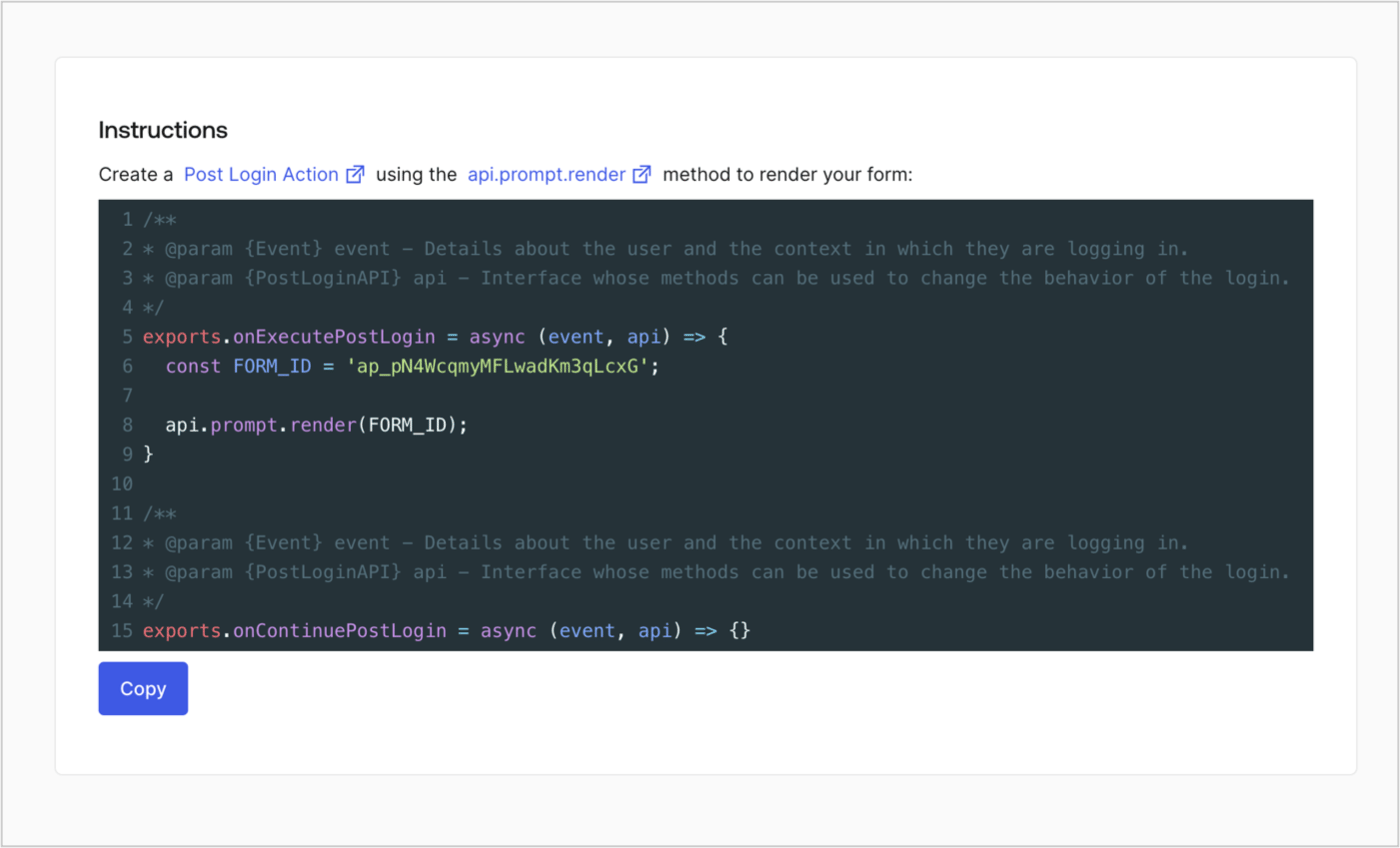
### Retrieve the form render code

Retrieve the form render code to visually render the form with a custom Post Login Action by following these steps:

* From the Form editor, select **`<> Render`**.
* Select **Copy**.
<Frame>
  <img src="https://mintcdn.com/docs-staging-chore-rate-limits-autoupdate/lyU4PfVfvI6-2PSs/docs/images/cdy7uua7fh8z/2EIUzc539sq9lwoTKbjoJv/496a864c0fc44a782c9cadca119dbfb0/embed.png?fit=max&auto=format&n=lyU4PfVfvI6-2PSs&q=85&s=03a83b00b049f6f8adc43a978de10b76" alt="Dashboard > Actions > Forms > Form > Embed" data-og-width="1400" width="1400" data-og-height="848" height="848" data-path="docs/images/cdy7uua7fh8z/2EIUzc539sq9lwoTKbjoJv/496a864c0fc44a782c9cadca119dbfb0/embed.png" data-optimize="true" data-opv="3" srcset="https://mintcdn.com/docs-staging-chore-rate-limits-autoupdate/lyU4PfVfvI6-2PSs/docs/images/cdy7uua7fh8z/2EIUzc539sq9lwoTKbjoJv/496a864c0fc44a782c9cadca119dbfb0/embed.png?w=280&fit=max&auto=format&n=lyU4PfVfvI6-2PSs&q=85&s=739c91854c32fe019aa448ea3f658fe9 280w, https://mintcdn.com/docs-staging-chore-rate-limits-autoupdate/lyU4PfVfvI6-2PSs/docs/images/cdy7uua7fh8z/2EIUzc539sq9lwoTKbjoJv/496a864c0fc44a782c9cadca119dbfb0/embed.png?w=560&fit=max&auto=format&n=lyU4PfVfvI6-2PSs&q=85&s=d56f20c60510e9f2b1dd9a848d16b574 560w, https://mintcdn.com/docs-staging-chore-rate-limits-autoupdate/lyU4PfVfvI6-2PSs/docs/images/cdy7uua7fh8z/2EIUzc539sq9lwoTKbjoJv/496a864c0fc44a782c9cadca119dbfb0/embed.png?w=840&fit=max&auto=format&n=lyU4PfVfvI6-2PSs&q=85&s=3005db68712173f22f78a1dbc65a7fb3 840w, https://mintcdn.com/docs-staging-chore-rate-limits-autoupdate/lyU4PfVfvI6-2PSs/docs/images/cdy7uua7fh8z/2EIUzc539sq9lwoTKbjoJv/496a864c0fc44a782c9cadca119dbfb0/embed.png?w=1100&fit=max&auto=format&n=lyU4PfVfvI6-2PSs&q=85&s=dedcdbe7f3617e903880016902395b0a 1100w, https://mintcdn.com/docs-staging-chore-rate-limits-autoupdate/lyU4PfVfvI6-2PSs/docs/images/cdy7uua7fh8z/2EIUzc539sq9lwoTKbjoJv/496a864c0fc44a782c9cadca119dbfb0/embed.png?w=1650&fit=max&auto=format&n=lyU4PfVfvI6-2PSs&q=85&s=ac599bf26f1e69a90527240023d930e7 1650w, https://mintcdn.com/docs-staging-chore-rate-limits-autoupdate/lyU4PfVfvI6-2PSs/docs/images/cdy7uua7fh8z/2EIUzc539sq9lwoTKbjoJv/496a864c0fc44a782c9cadca119dbfb0/embed.png?w=2500&fit=max&auto=format&n=lyU4PfVfvI6-2PSs&q=85&s=66ffbc6451a9bb628bac4b844162acd5 2500w" />
</Frame>

## Create a Post Login Action

Create a post-login Action to render your form by following these steps:

1. Navigate to **Auth0 Dashboard > Actions > Flows > Login.**
2. Select the **+** icon and select **Build from scratch**:

   * **Name**: Enter `Render Progressive Profile Form`.
   * **Trigger**: Select `Login / Post Login`.
   * **Runtime**: Select the recommended version.
3. Select **Create**.

To configure the post-login Action:

1. Delete the existing code from the Code editor.
2. Paste the form embed code into the Code editor.
3. Edit the code to define the conditional logic that will render the form.

   ```javascript lines theme={null}
   /**
   * @param {Event} event - Details about the user and the context in which they are logging in.
   * @param {PostLoginAPI} api - Interface whose methods can be used to change the behavior of the login.
   */
   exports.onExecutePostLogin = async (event, api) => {
     const FORM_ID = 'REPLACE_WITH_YOUR_FORM_ID';

     if (
       event.stats.logins_count > 2 &&
       !event.user.user_metadata.company_name &&
       !event.user.user_metadata.job_title
     ) {
       api.prompt.render(FORM_ID);
     }
   }

   exports.onContinuePostLogin = async (event, api) => { }
   ```

   <Callout icon="file-lines" color="#0EA5E9" iconType="regular">
     The example code above will render the form when a user has a login count > 2 and is missing the user metadata company\_name and job\_title properties.
   </Callout>
4. Select **Deploy.**
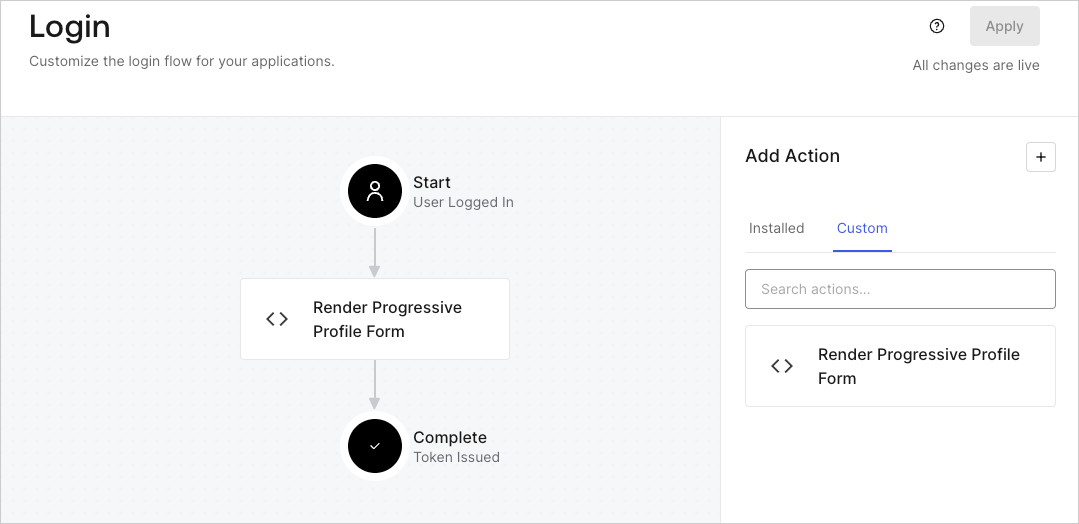
5. Drag and Drop the **Render Progressive Profile Form** Action to the **Login** flow.
   <Frame>
     <img src="https://mintcdn.com/docs-staging-chore-rate-limits-autoupdate/m843fSKItCTn_p-_/docs/images/cdy7uua7fh8z/1QjjZdpTqTxx012UDN4xk9/99fba5ef4068a5688f1762eea7f42976/renderprogessiveprofile.png?fit=max&auto=format&n=m843fSKItCTn_p-_&q=85&s=15e0db65359f8456561ec88c5e25fc97" alt="Dashboard > Forms > Use Cases Progressive Profile Login Action" data-og-width="1079" width="1079" data-og-height="524" height="524" data-path="docs/images/cdy7uua7fh8z/1QjjZdpTqTxx012UDN4xk9/99fba5ef4068a5688f1762eea7f42976/renderprogessiveprofile.png" data-optimize="true" data-opv="3" srcset="https://mintcdn.com/docs-staging-chore-rate-limits-autoupdate/m843fSKItCTn_p-_/docs/images/cdy7uua7fh8z/1QjjZdpTqTxx012UDN4xk9/99fba5ef4068a5688f1762eea7f42976/renderprogessiveprofile.png?w=280&fit=max&auto=format&n=m843fSKItCTn_p-_&q=85&s=920fdb3157586036439d12b7d0389436 280w, https://mintcdn.com/docs-staging-chore-rate-limits-autoupdate/m843fSKItCTn_p-_/docs/images/cdy7uua7fh8z/1QjjZdpTqTxx012UDN4xk9/99fba5ef4068a5688f1762eea7f42976/renderprogessiveprofile.png?w=560&fit=max&auto=format&n=m843fSKItCTn_p-_&q=85&s=8324d8aa44ba450aa040861a40c18930 560w, https://mintcdn.com/docs-staging-chore-rate-limits-autoupdate/m843fSKItCTn_p-_/docs/images/cdy7uua7fh8z/1QjjZdpTqTxx012UDN4xk9/99fba5ef4068a5688f1762eea7f42976/renderprogessiveprofile.png?w=840&fit=max&auto=format&n=m843fSKItCTn_p-_&q=85&s=0207635d92bb2865c61c2c124aa29e79 840w, https://mintcdn.com/docs-staging-chore-rate-limits-autoupdate/m843fSKItCTn_p-_/docs/images/cdy7uua7fh8z/1QjjZdpTqTxx012UDN4xk9/99fba5ef4068a5688f1762eea7f42976/renderprogessiveprofile.png?w=1100&fit=max&auto=format&n=m843fSKItCTn_p-_&q=85&s=91d04b321c2ce098c427b70a8633ca9b 1100w, https://mintcdn.com/docs-staging-chore-rate-limits-autoupdate/m843fSKItCTn_p-_/docs/images/cdy7uua7fh8z/1QjjZdpTqTxx012UDN4xk9/99fba5ef4068a5688f1762eea7f42976/renderprogessiveprofile.png?w=1650&fit=max&auto=format&n=m843fSKItCTn_p-_&q=85&s=8b801d58e84ea61030f927cbce943b5d 1650w, https://mintcdn.com/docs-staging-chore-rate-limits-autoupdate/m843fSKItCTn_p-_/docs/images/cdy7uua7fh8z/1QjjZdpTqTxx012UDN4xk9/99fba5ef4068a5688f1762eea7f42976/renderprogessiveprofile.png?w=2500&fit=max&auto=format&n=m843fSKItCTn_p-_&q=85&s=e81c57756ab383b0405ed2b4be895dc0 2500w" />
   </Frame>
6. Select **Apply**.

### Test implementation

Test the implementation by following these steps:

1. Log in with an existing user whose login count is greater than 2 and their `user_metadata` attributes `company_name` and `job_title` have no values.
2. The post-login action in the Login flow will render the form and prompt for the information.
3. Select **Auth0 Dashboard > User Management > Users,** locate the user and verify that the `user_metadata` attributes `company_name` and `job_title` contain information.
